The agent is not checking in
Look for the menu bar icon, use Ping Now, and re-enroll with a fresh code if the device was removed.
If the dashboard says your device has not checked in but the Mac is online:
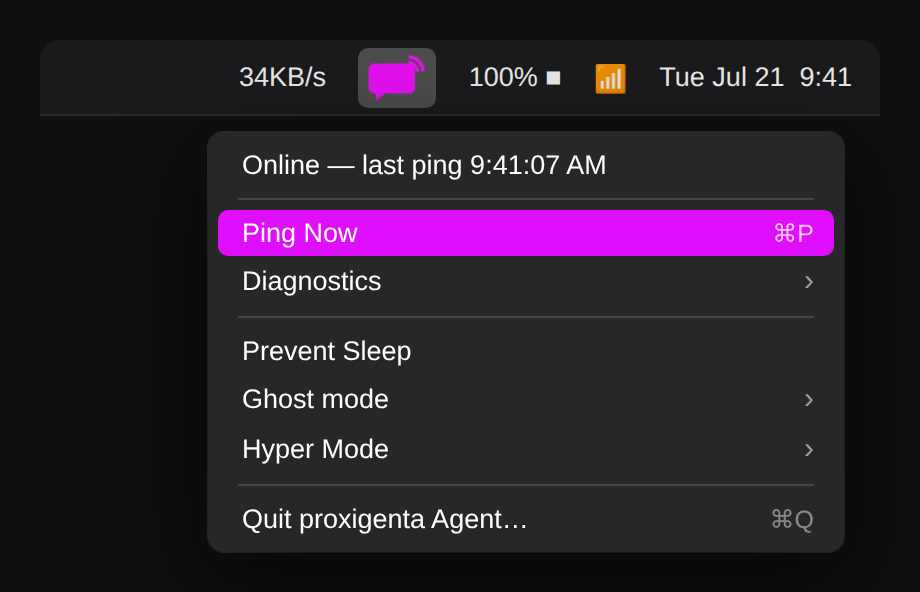
- Is the agent running? Look for the proxigenta icon in the menu bar. If it is missing, launch proxigenta Agent from Applications; it reinstalls its own start-at-login entry each time it runs.
- Force a check-in. Click the icon, then Ping Now. The status line shows the result immediately; “Online, last ping” with the current time means all is well.
- Was the device removed? Removing a device in settings disconnects its agent permanently. Re-enroll: get a fresh code from Devices and enter it in the agent.
- Network filtering. The agent talks to app.proxigenta.com over standard https. Corporate or public networks that block unknown domains will block check-ins; the dashboard will show the gap honestly.
After any outage, real or not, the first successful check-in clears the state automatically and sends the all-clear if contacts were alerted.